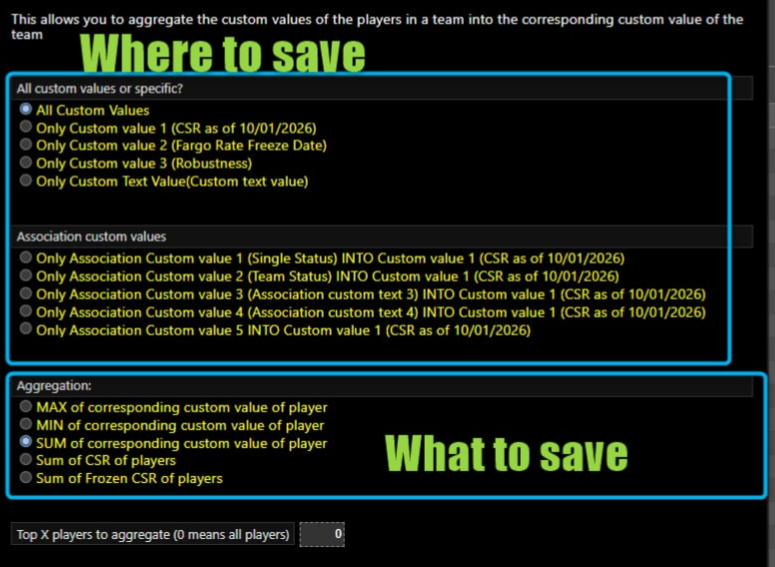
Aggregate custom values calculates a team value using player custom values or CSR ratings.
1. Decide which values to use
Player custom values: Go to Menu → Manage → Players/Teams → Players and enter each player’s numeric value in the same column, such as Custom Value 1. Use Division Custom Values when the values are specific to a division.
Player CSR: No custom values need to be entered under Players. The tool uses player CSR ratings directly. Continue to Step 2.
2. Open the tool
Go to Menu → Manage → Players/Teams → Teams.
Select the division you want to update, or All to work across the event. Click on Display More Options (top right corner), click Aggregate custom values.
3. Select the team column to update
When a division is selected, choose Custom Values or Division Custom Values.
Select the specific column where you want to store the team result, or choose the option to update all custom values and custom text.
Using player custom values: The tool uses the corresponding player column. For example, player Custom Value 1 becomes team Custom Value 1.
Using CSR: The selected team column stores the calculated CSR total. You do not need to enter CSR ratings in player custom value columns.
4. Choose the calculation
| Method | What it does |
|---|---|
| Sum of CSR of players | Adds player CSR ratings together |
| SUM | Adds player custom values together |
| MAX | Uses the highest player custom value |
| MIN | Uses the lowest player custom value |
A frozen CSR option also appears when frozen CSR is available for the event.
For example, player custom values of 5, 7 and 8 give 20 with SUM, 8 with MAX, or 5 with MIN.
5. Choose how many players to include
In Top X players to aggregate:
Enter 0 to include all players on each team’s roster.
For a SUM or CSR total, enter a number to include only that many players with the highest values or ratings.
For example, with custom values 5, 7 and 8, entering 2 gives a total of 15: 8 + 7.
6. Apply the calculation
Review your selections and click OK. Check the results in the corresponding columns under Teams.
Important: This replaces the selected team custom values throughout the selected division or event. It is not limited to one highlighted team.
Run the tool again when you want to recalculate after player values, CSR ratings or team rosters change.
Tip: When using player custom values, use numbers for calculations. Letter ratings such as A, B or C cannot be added together.