
If you want to display a message directly on your league's online statistics, you can add a Standing Note.
This note appears with the online stats that players can view on CompuSport, including the app/web stats pages.
Important: This is different from adding a note to a PDF Standing Report. The steps below are only for the online stats.
How to add the Standing Note
- Go to Menu > Manage > Statistics/Standings > Standings Notes.
- If needed, use the Division filter at the top to find the division you want to update.
- Select the division/league from the list.
- Click the Pencil to edit.
- Open the League Standing Report Note section.
- Enter the message you want players to see on the online stats page.
- Click Save.
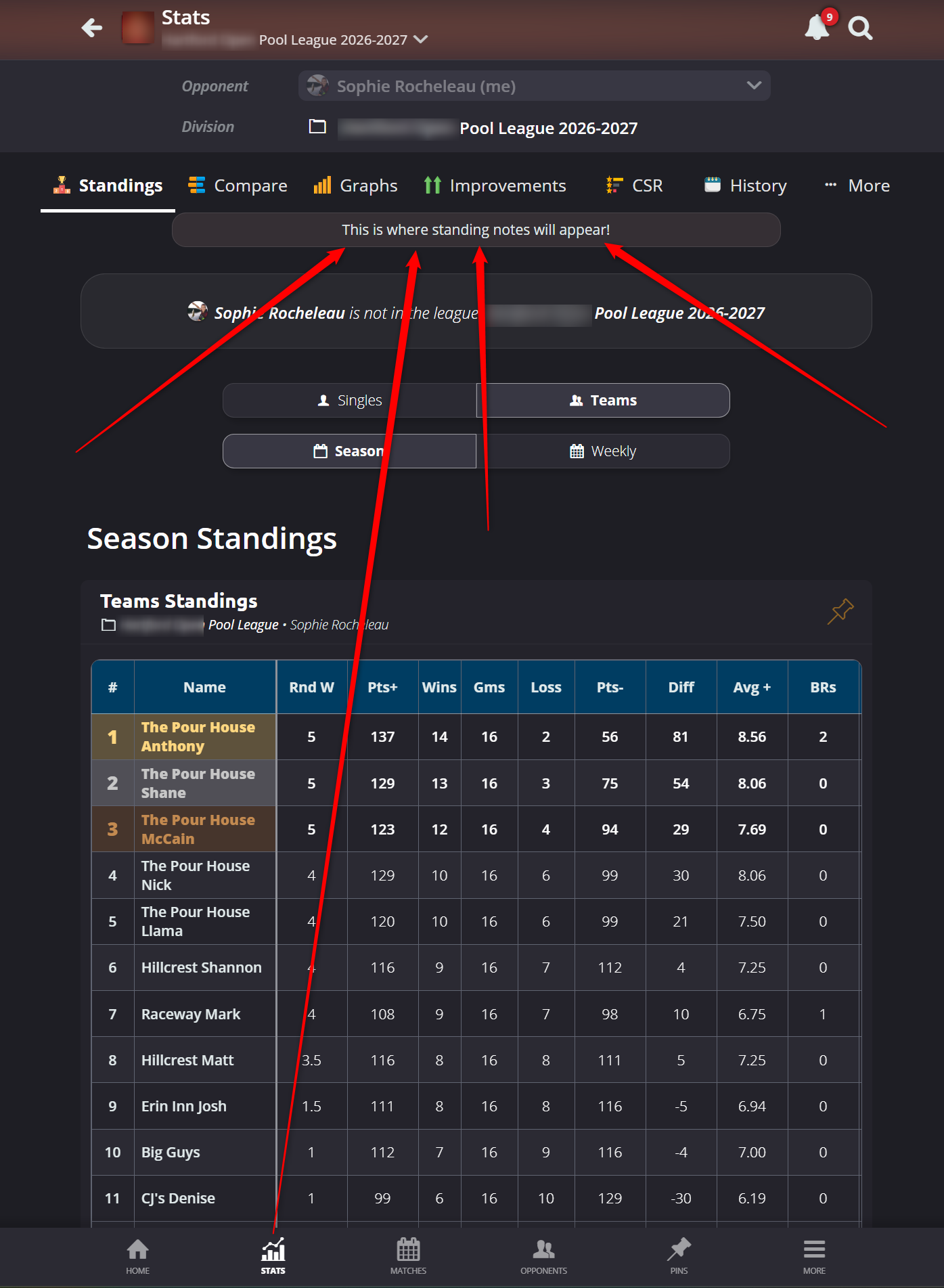
Example
You could use the Standing Note for information such as:
Week 8: The top 4 teams will qualify for playoffs.
Once saved, the note will be displayed with the online statistics for that stats group/division.
Need a different note for another division?
Standing Notes can be entered for specific divisions. Select the other division and repeat the same steps.
Note: If you are trying to add the note to a PDF report, that is a separate setting in the Standing Report Editor. Select the Section under Section 2, click the pencil, check the box Include notes. Standing notes will appear.