
To create a CSR Chart for your tournament, you want to go to :
Menu > Manage > Bracket/Round-Robin > Race to chart.
Click on Display More Option.
Click on Create a CSR Chart.
CSR Range :
You insert the minimum and maximum CSR's for your chart.
Minimum and Maximum race to you want in your chart.
Insert, if applicable a leeway.*
Choose if you want the odds of winning should be Low, Med, High. etc.
Then you can click on See Chart and you can test by using the simulator to see the results you would get.
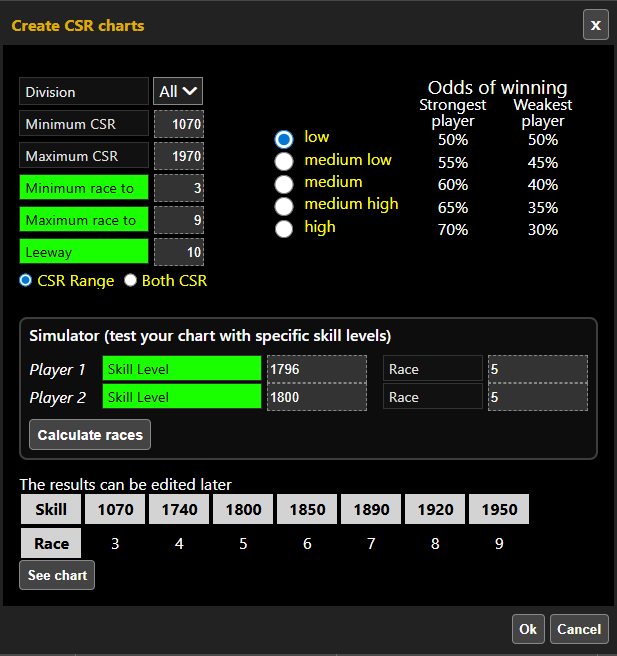 *What is Leeway : Player with this amount of points below their opponent will get the same "race to" as their opponent. (By passes the chart race to.
In this example, if someone has 1796 and his opponent has 1800. Technically the 1796 should be in the "Race to 4"
But because the leeway is 10, they will race to 5 because the difference of both CSR is close enough.
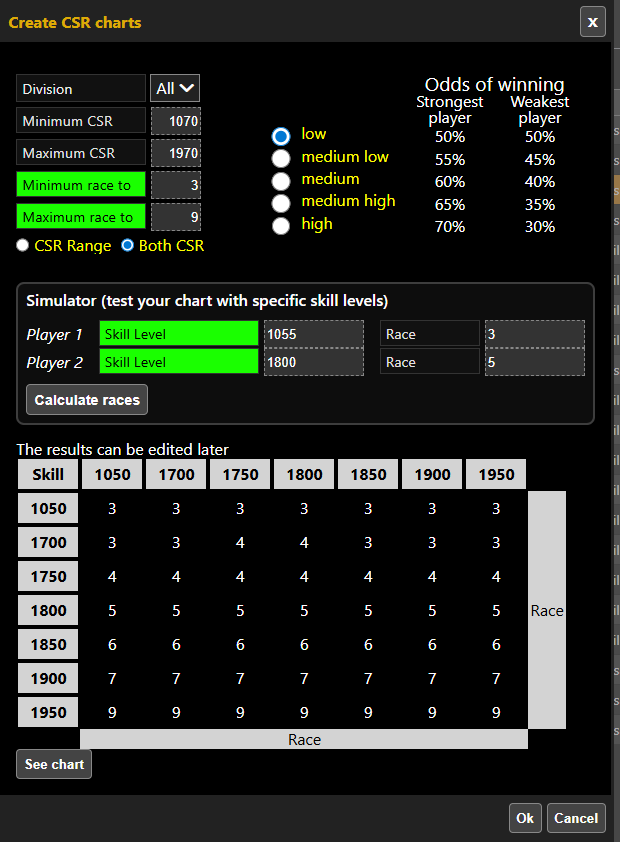
Both CSR:
You insert the minimum and maximum CSR's for your chart.
Minimum and Maximum race to you want in your chart.
Choose if you want the odds of winning should be Low, Med, High. etc.
TO USE/SET THE CHART YOU CREATED:
You must go to Menu > Manage > Divisions.
Select the division that will use the chart.
Click on the Pencil.
For Field to use as Skill Level (or race) : CSR
Mapping of Skill Level to Race to (handicap race chart) : Choose your chart.